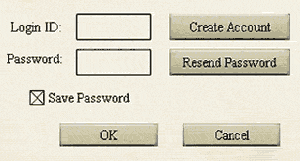
 When you select the DELETE ACCOUNT option, you will be required to provide your login ID and password to access your account. |
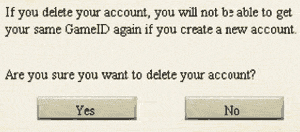 After successfully logging into your account, you are shown the information on the right. Please note, when deleting your account the effect is immediate, regardless of when you were last billed. |
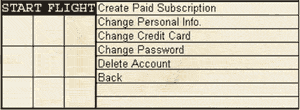 When you select the Account Admin option from the clipboard, you are requested to provide your login ID and password. Once you have successfully entered that information and it has been authenticated, you will be presented with the screen on the right. |
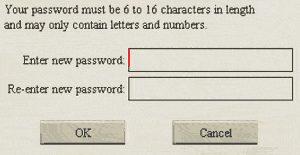 Select Change Password and you will be presented with the dialog shown right. Enter your new password. Re-enter the new password again. Pressing OK will make the change to your password immediately.
|
| If you get an error while trying to use this option, please send an email to our This email address is being protected from spambots. You need JavaScript enabled to view it. and be sure to include your login ID, and and the error code which you got back. |
| When you select the Account Admin option from the clipboard, you are requested to provide your login ID and password.
Once you have successfully entered that information and it has been authenticated, you will be presented with the screen on the right. |
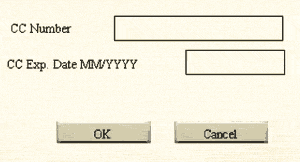 Select Change Credit Card and you will be presented with the dialog shown right. Enter your credit/debit number (without the hyphens) and the card expiration date. If the card has no expiration date, it cannot be used to pay for your subscription. |
| If you get an error while trying to use this option, please send an email to our This email address is being protected from spambots. You need JavaScript enabled to view it. and be sure to include your login ID, and and the error code which you got back. |
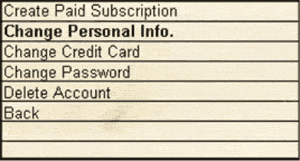 Selecting the Account Admin option brings up a menu as shown to the right. |
|
| When you select the Change Personal information button you will be taken to the login screen.
You will be required to supply your user ID and password to access your account information. |
|
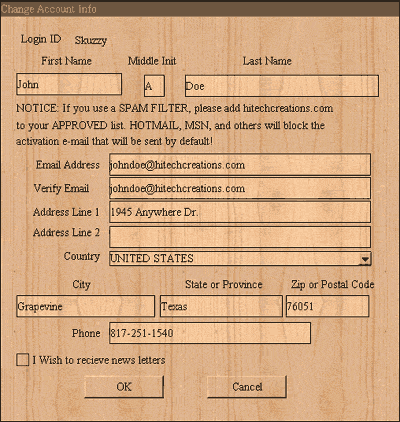 Once you have supplied your login ID and password, you will be allowed to change the account information shown on the right. When you are done, press the OK button to store the changes, or Cancel to drop the changes. |
| While offline play is always free, you must have an account to go online into any of the arenas. |
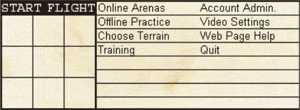 Let's focus on using the Account Admin option from the clipboard. When you select it, using your mouse, you will be presented with the Account Admin screen in the game. |
| Select the Create Paid Subscription option. |
| The game will then prompt you for credit/debit card information, as shown on the right. Enter the information and press OK |
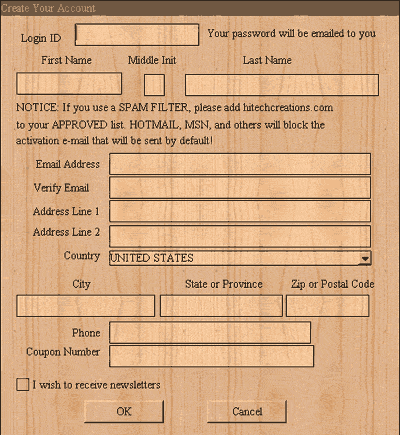 The account creation screen be displayed as shown on the right. Your Login ID must be between 6 and 15 characters, letters and numbers only. Your login ID is only used for account verification purposes and is not ever visible to anyone else. Your password will be sent to the email address you submit with your account information. If this is the first time you have ever played Aces High, you will get a two week free trial period to try it out. At the end of the two week trial, the game will ask if you wish to subscribe. The last item is a Coupon Number. If you do not have one, simply leave this blank. Once you have completed all the fields, press the OK button to submit the information. If all went well, you will receive your password via the email address you submitted in a few minutes. You will need to wait for that email, as it contains your password. If, for some reason, you do not get your password in the email, please send an email to our This email address is being protected from spambots. You need JavaScript enabled to view it. and be sure to include your login ID, and we will get that password to you |
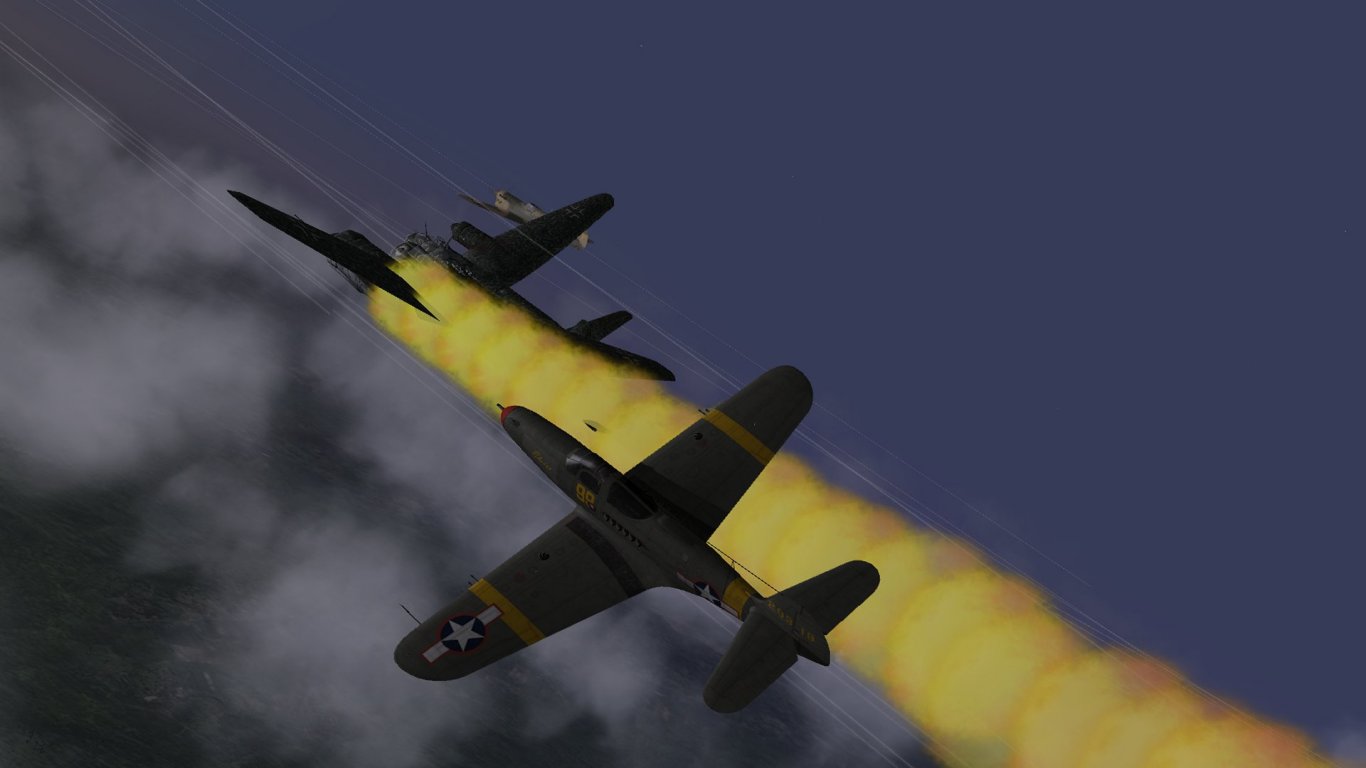
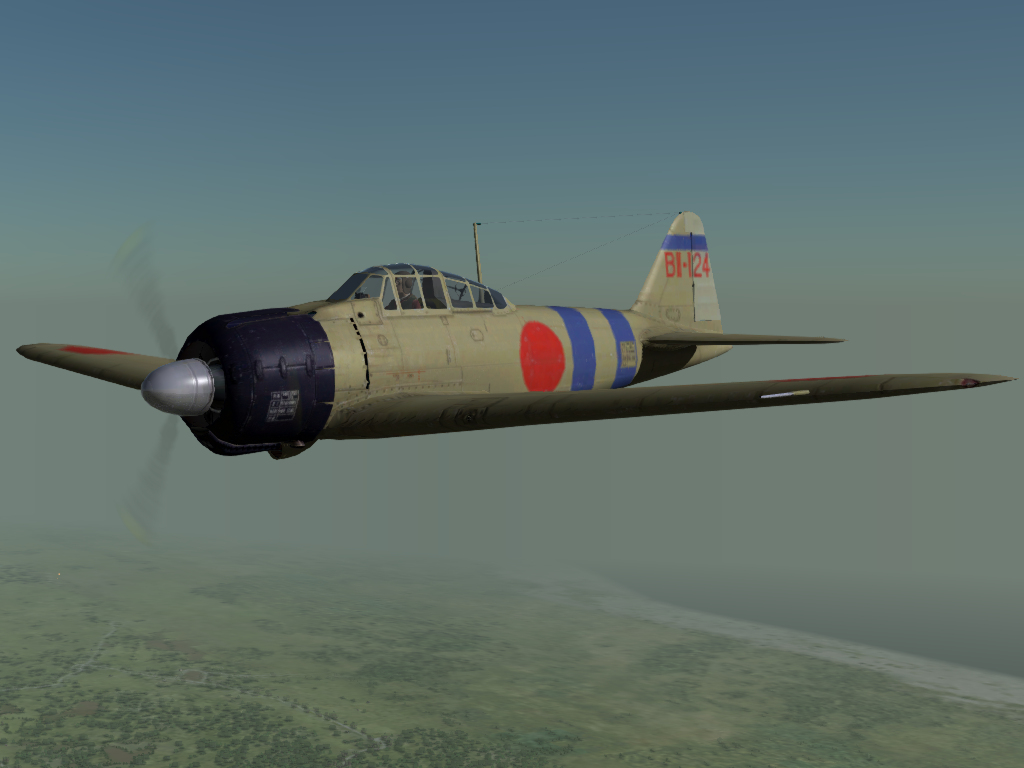
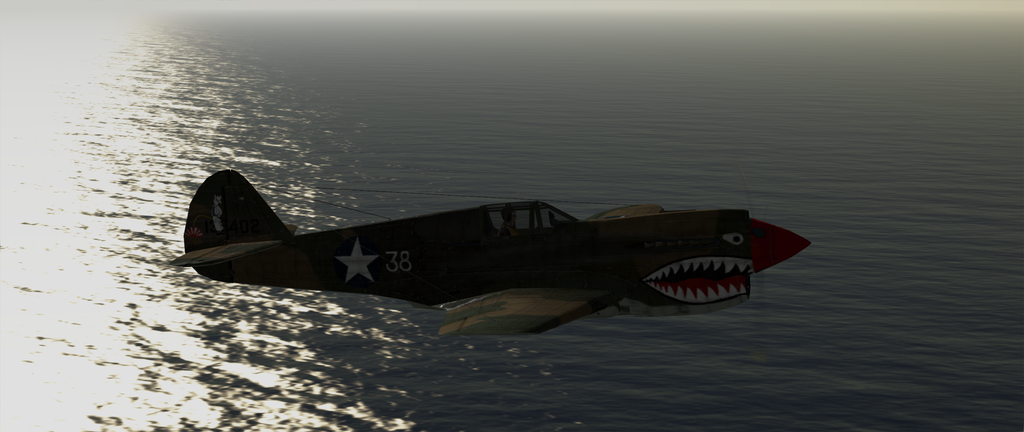
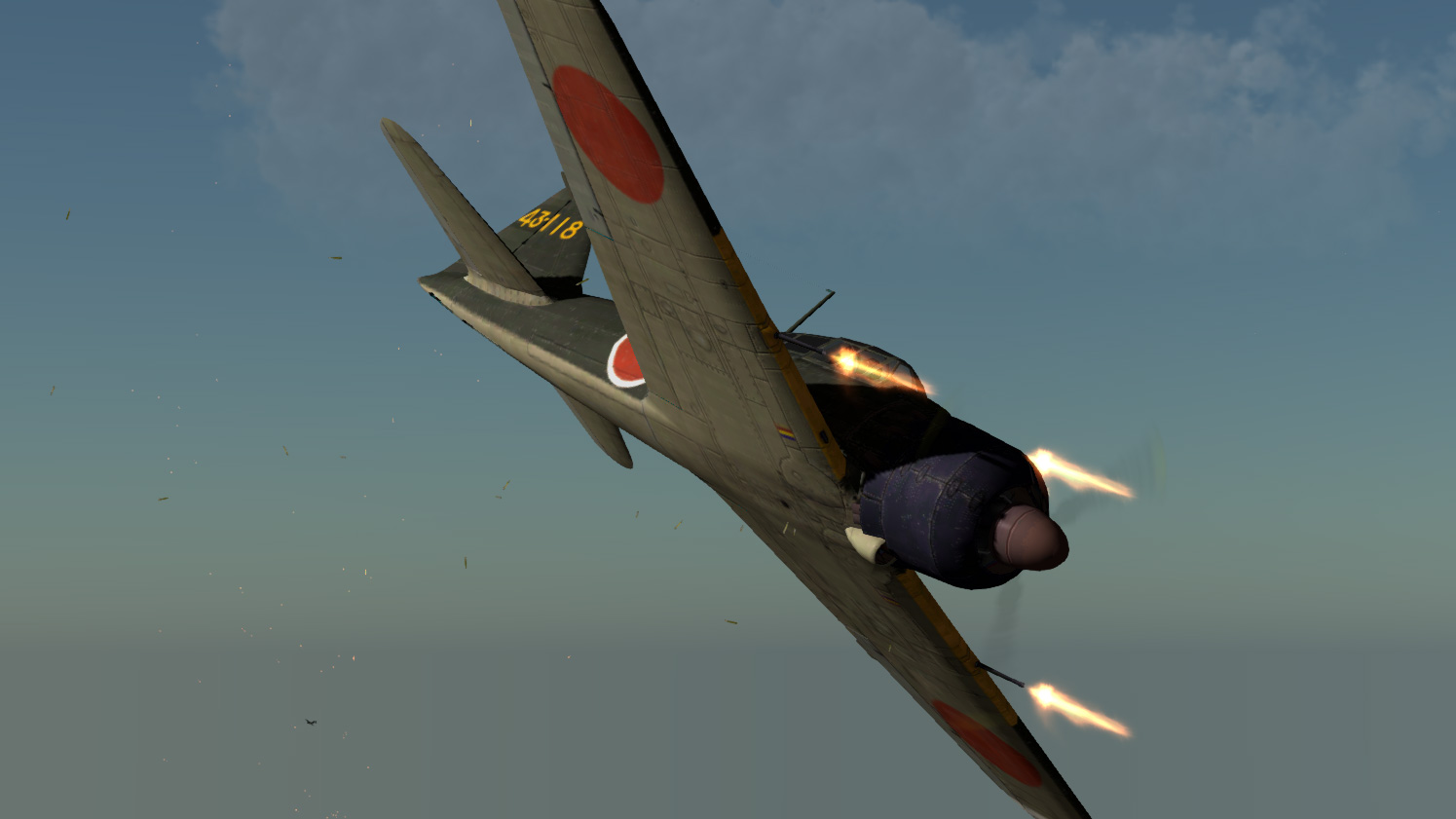
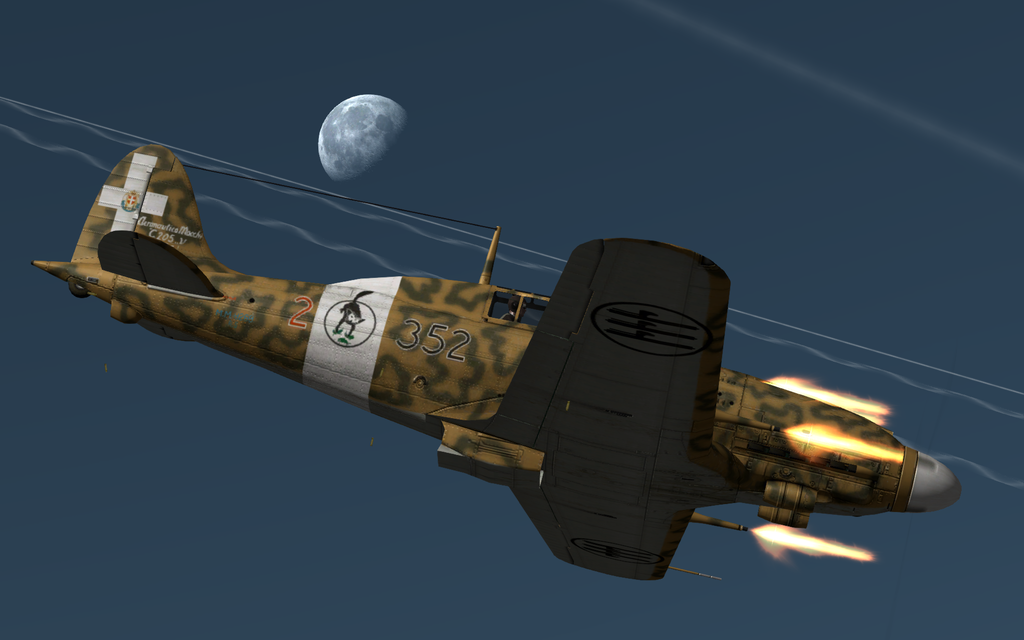
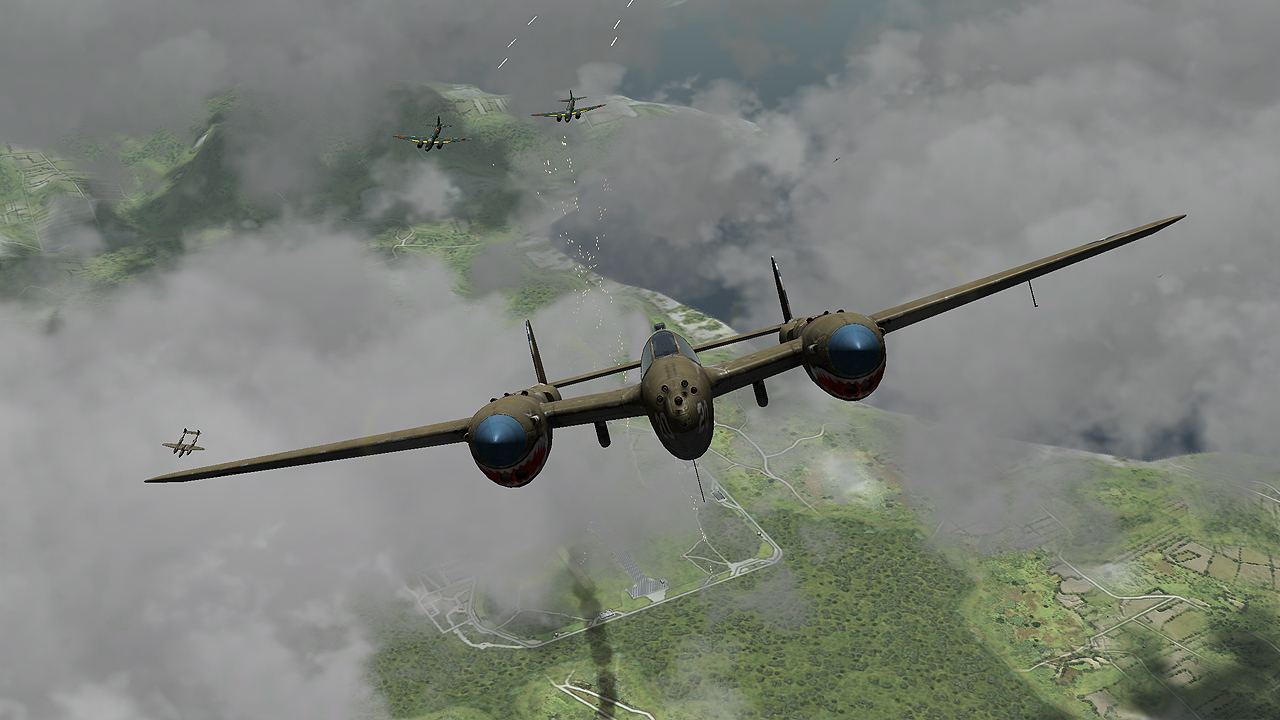
Welcome to the best WW2 and WW1 combat experience online!
- With the best combat flight simulator
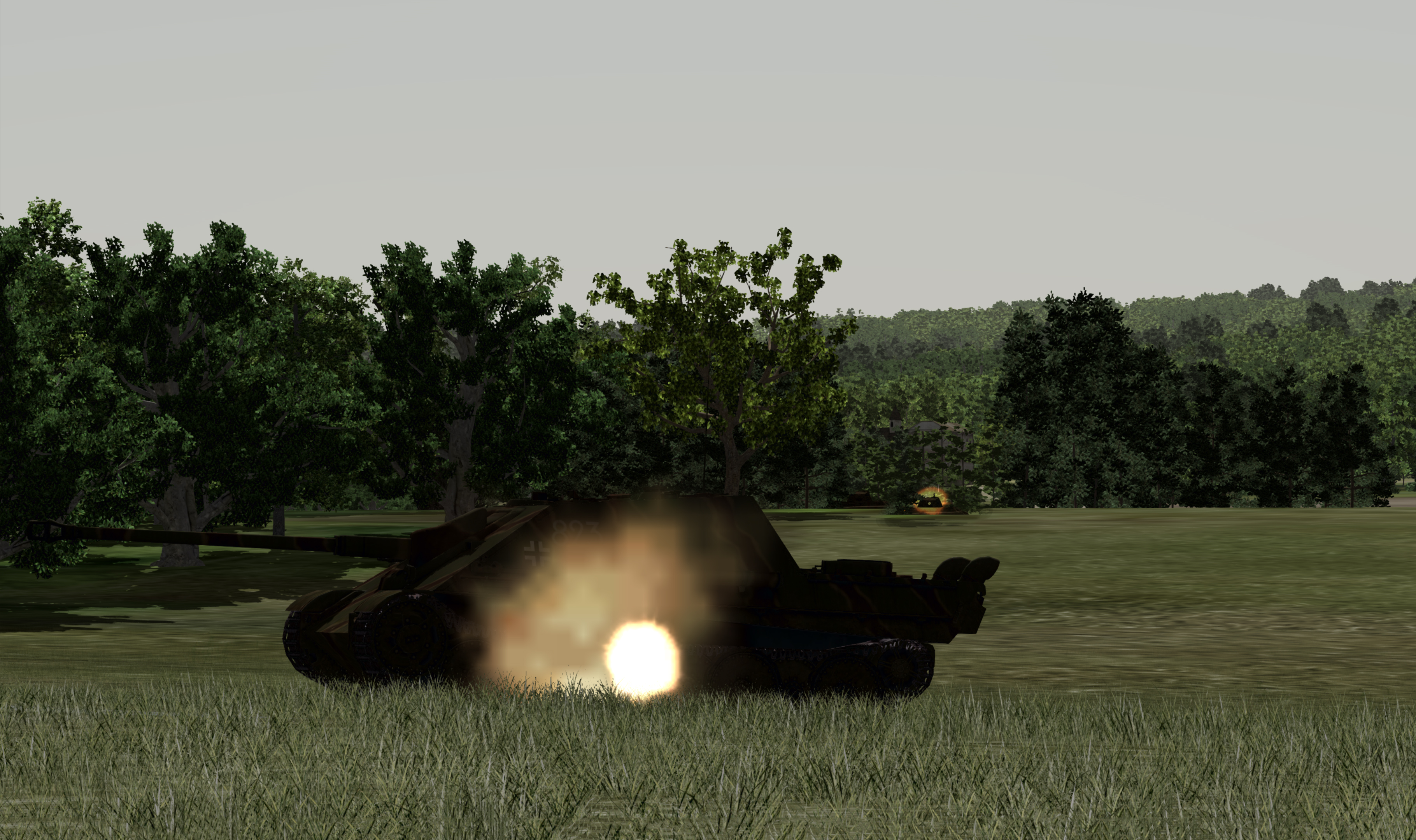
- Engage in land, sea, or air combat
- Create your own missions
- Form a squadron
- Find action 24 hours a day
- Participate in historical scenarios
Free download. Free 2 week trial.
No credit card required for free trial.
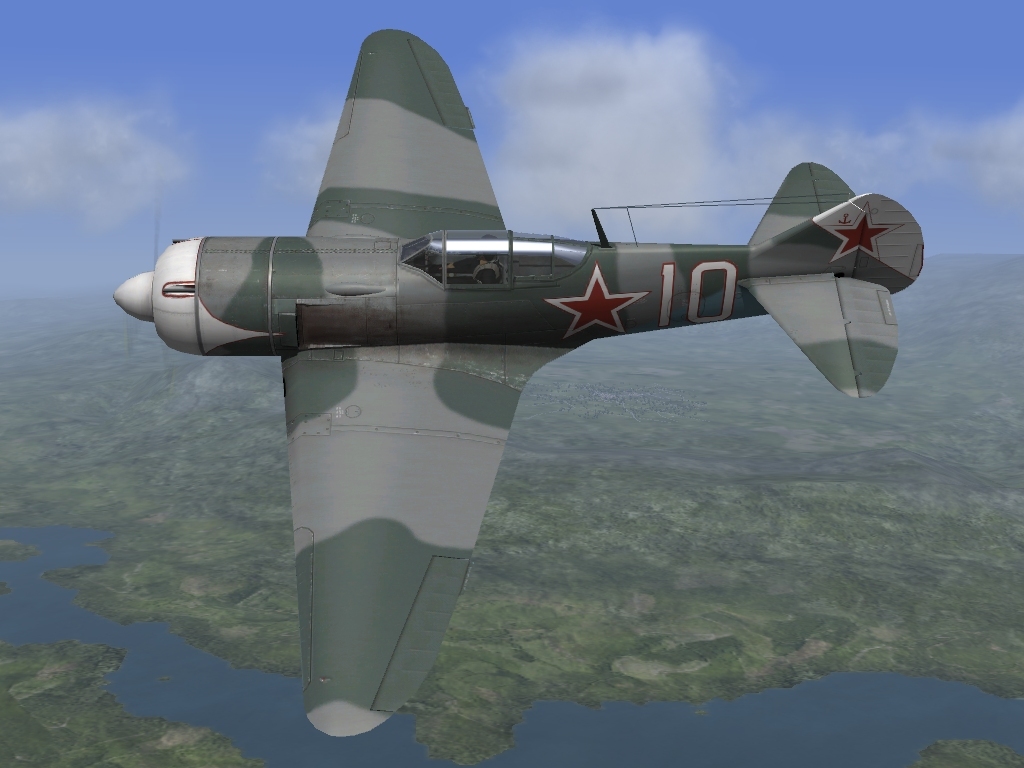
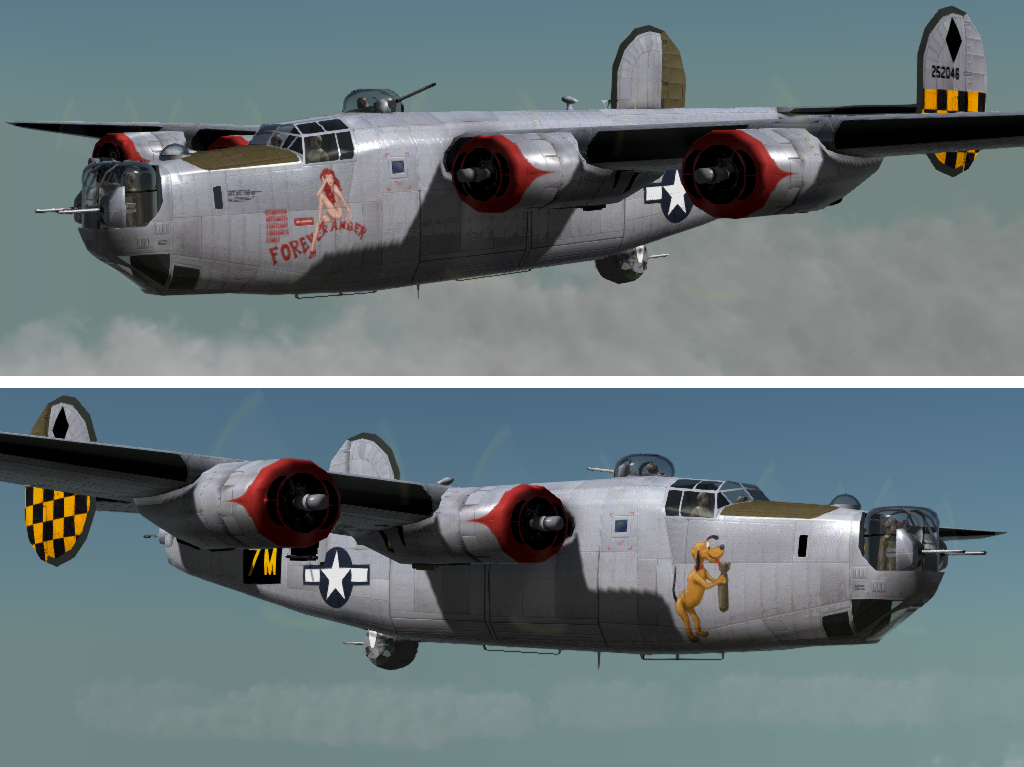
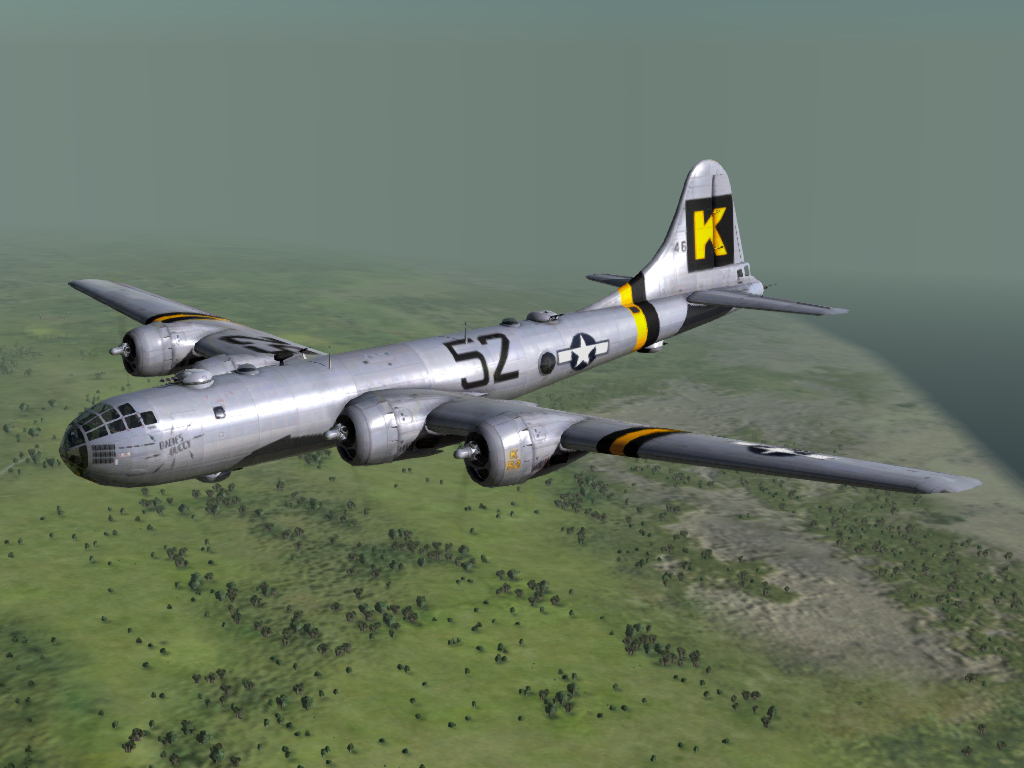
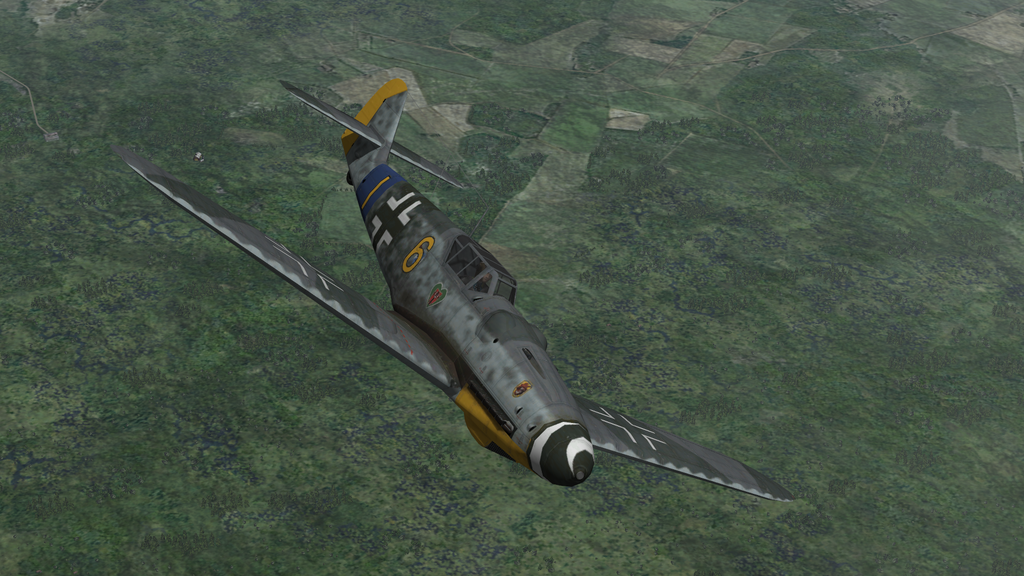
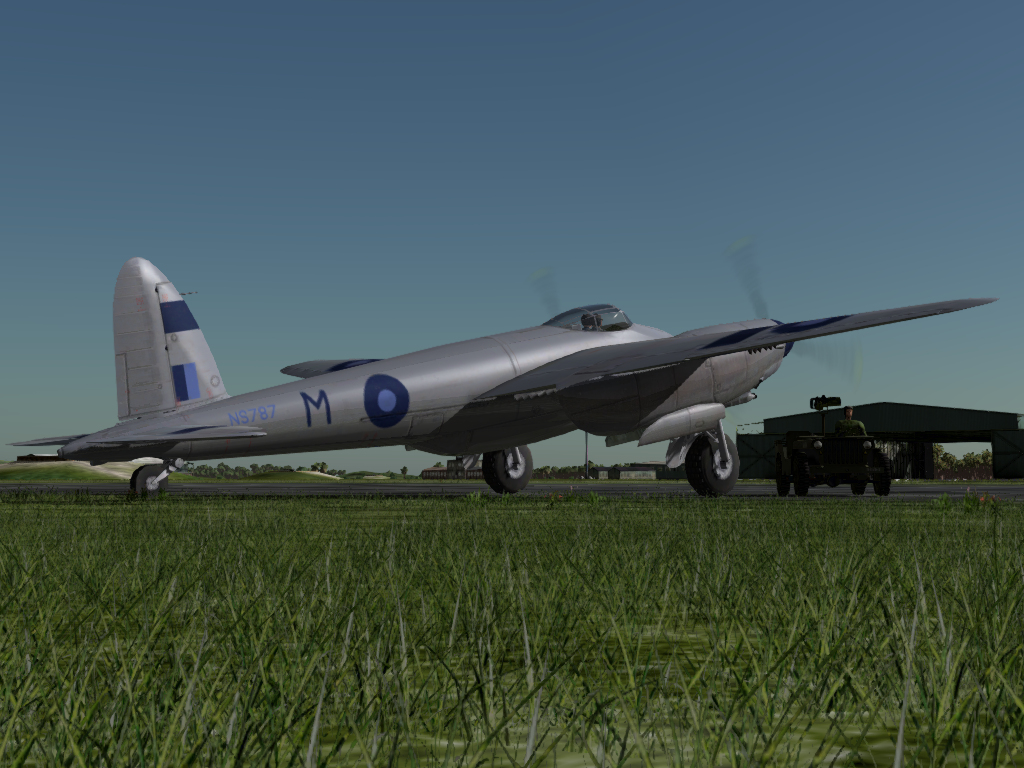
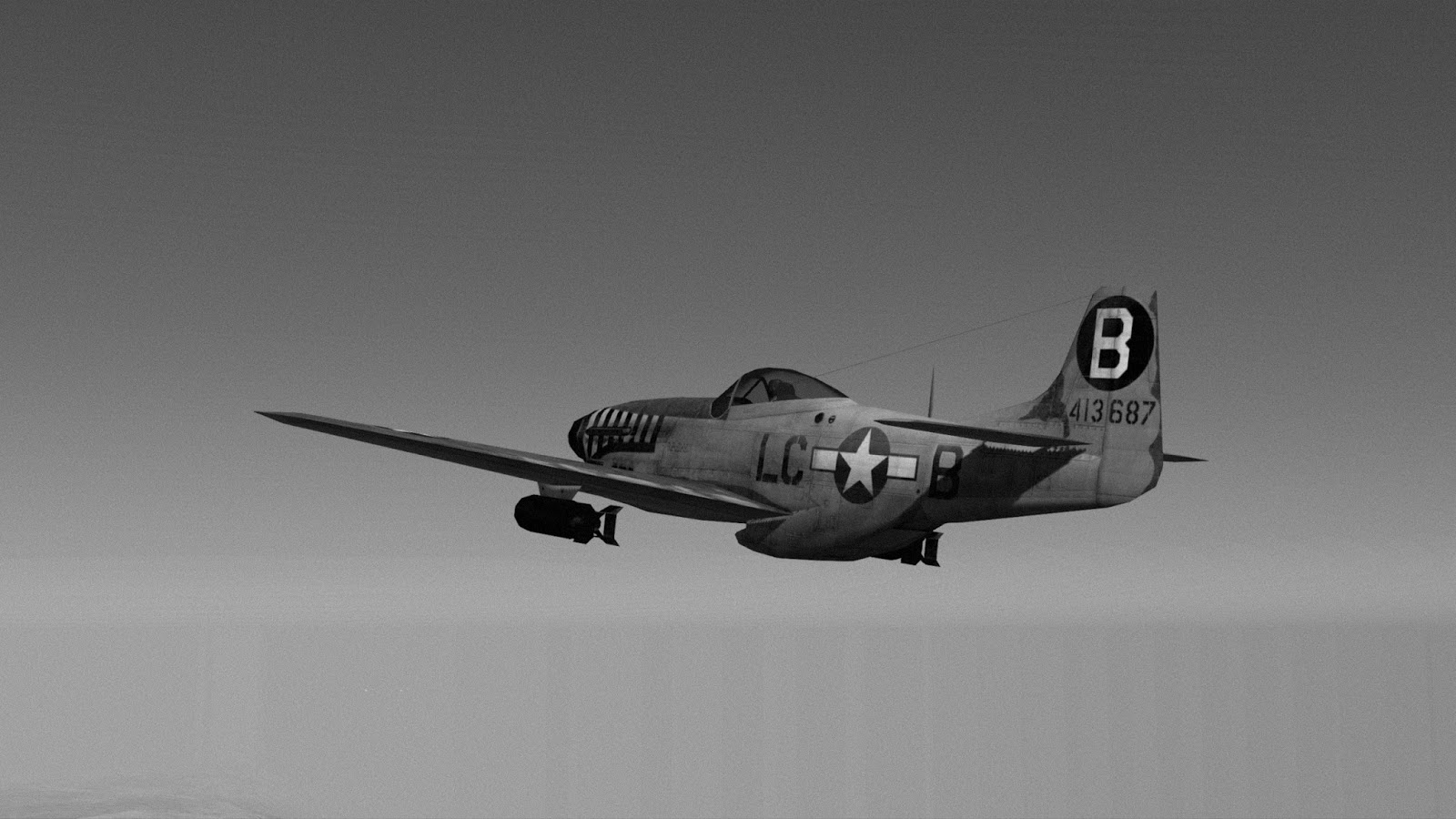
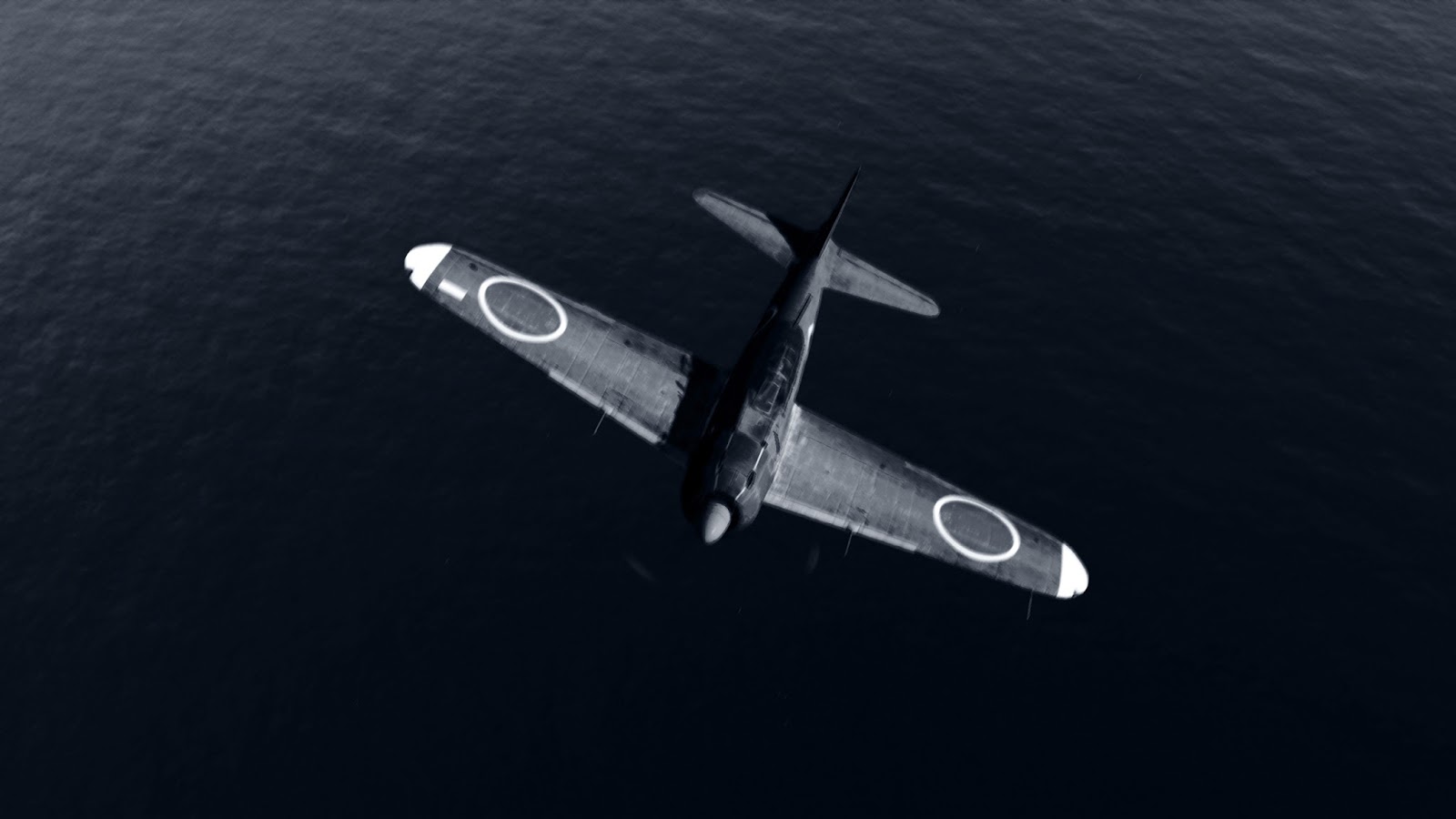
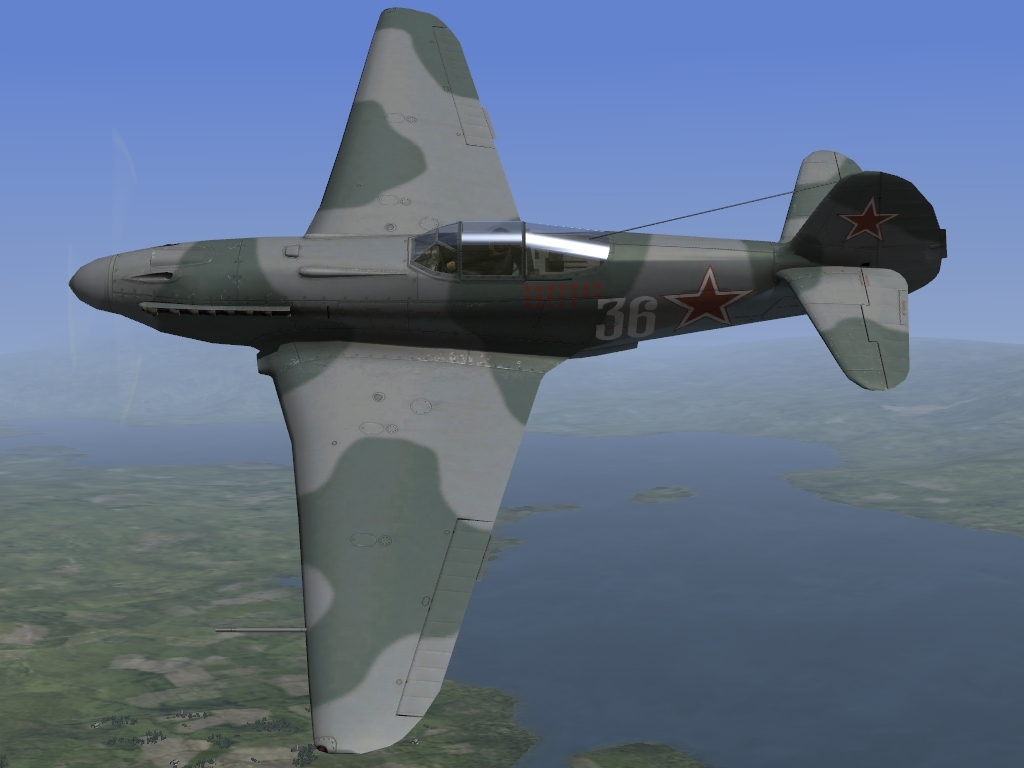
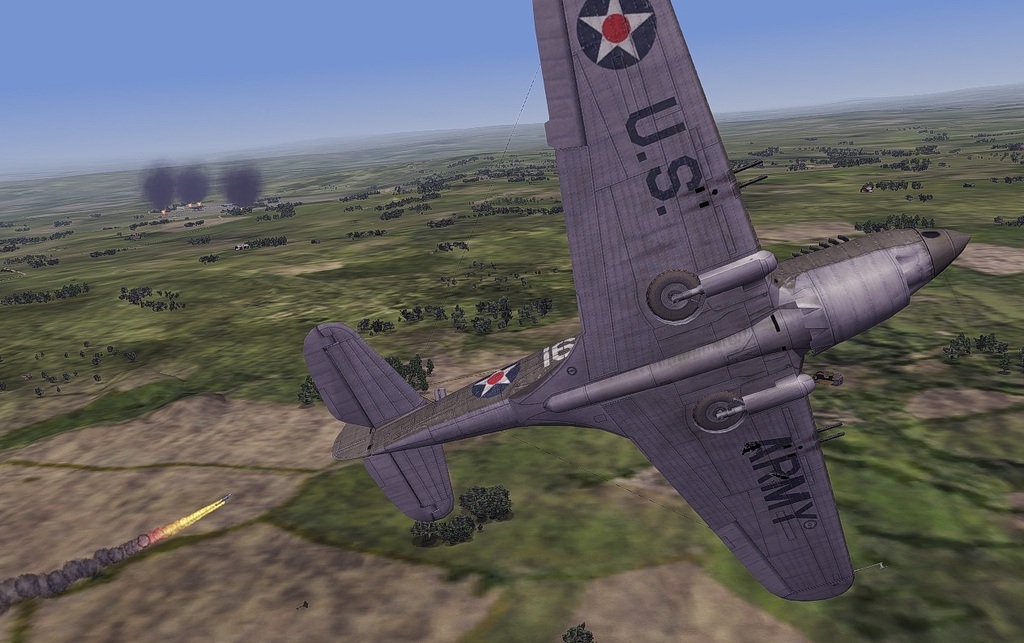
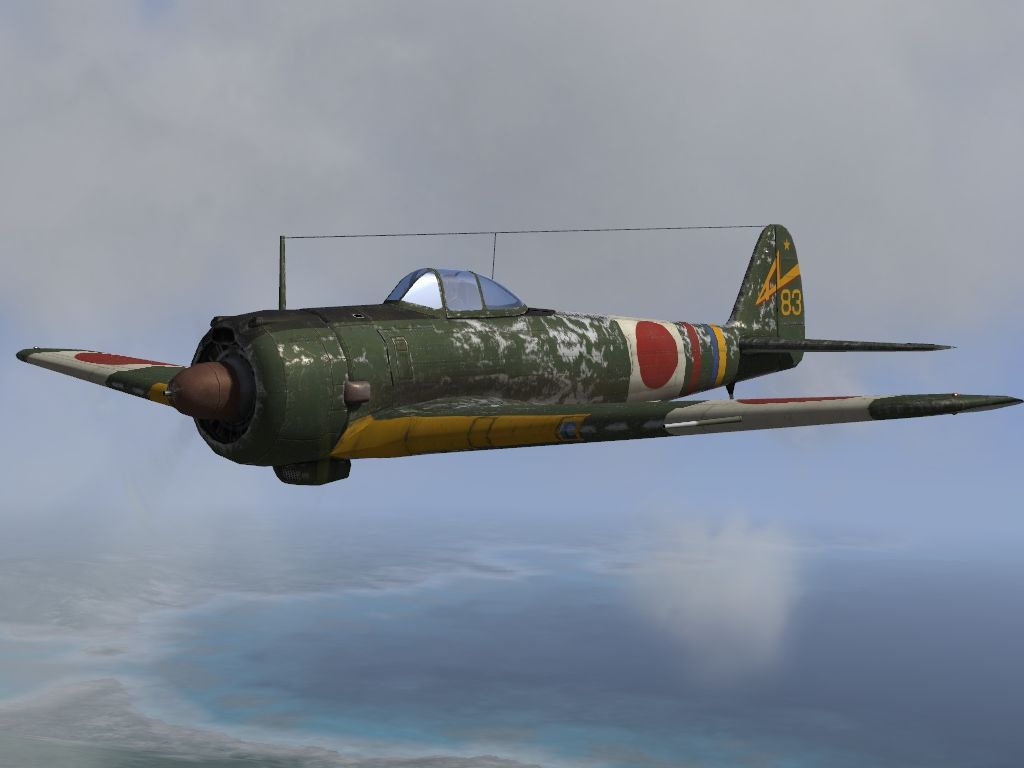
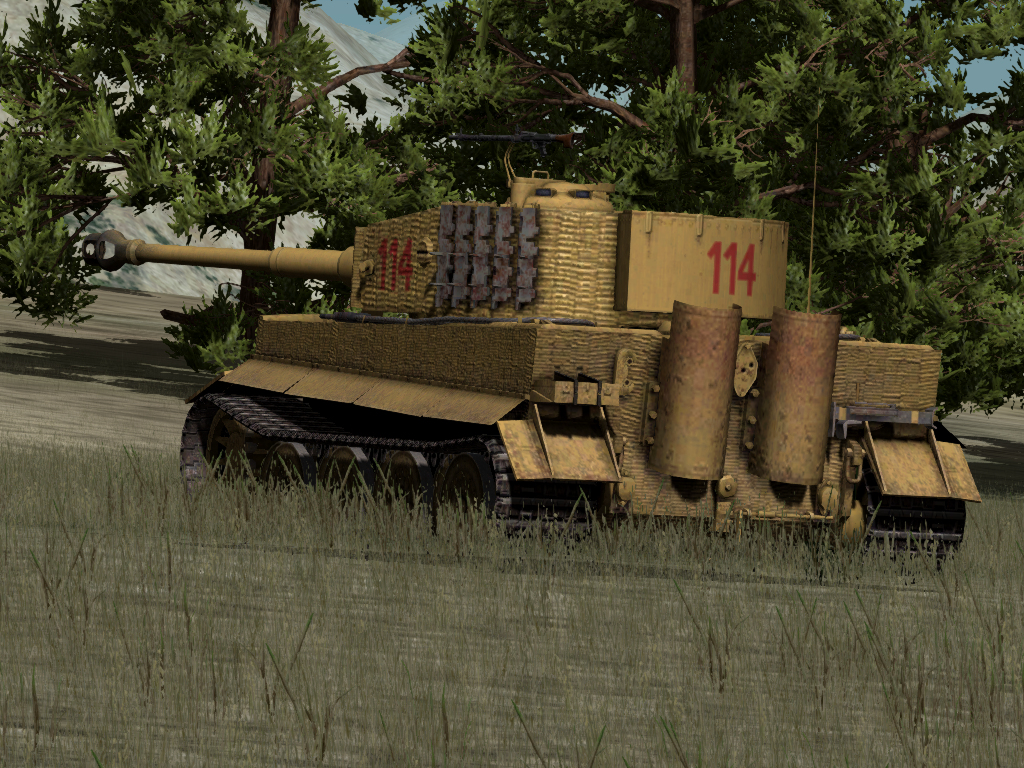
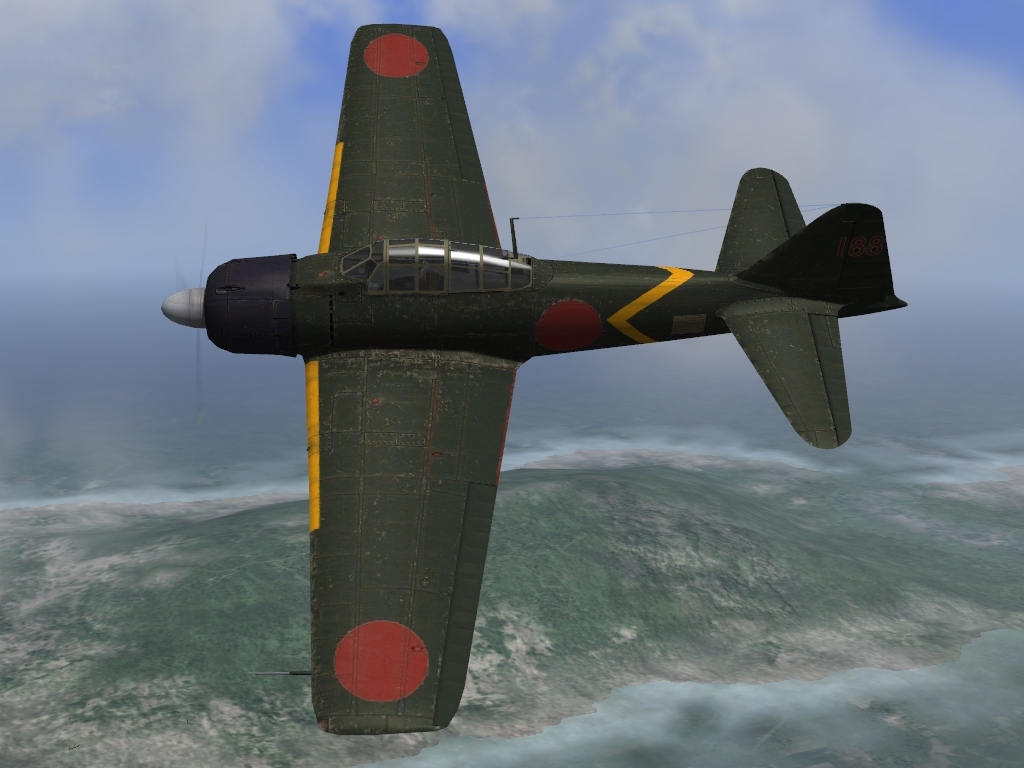
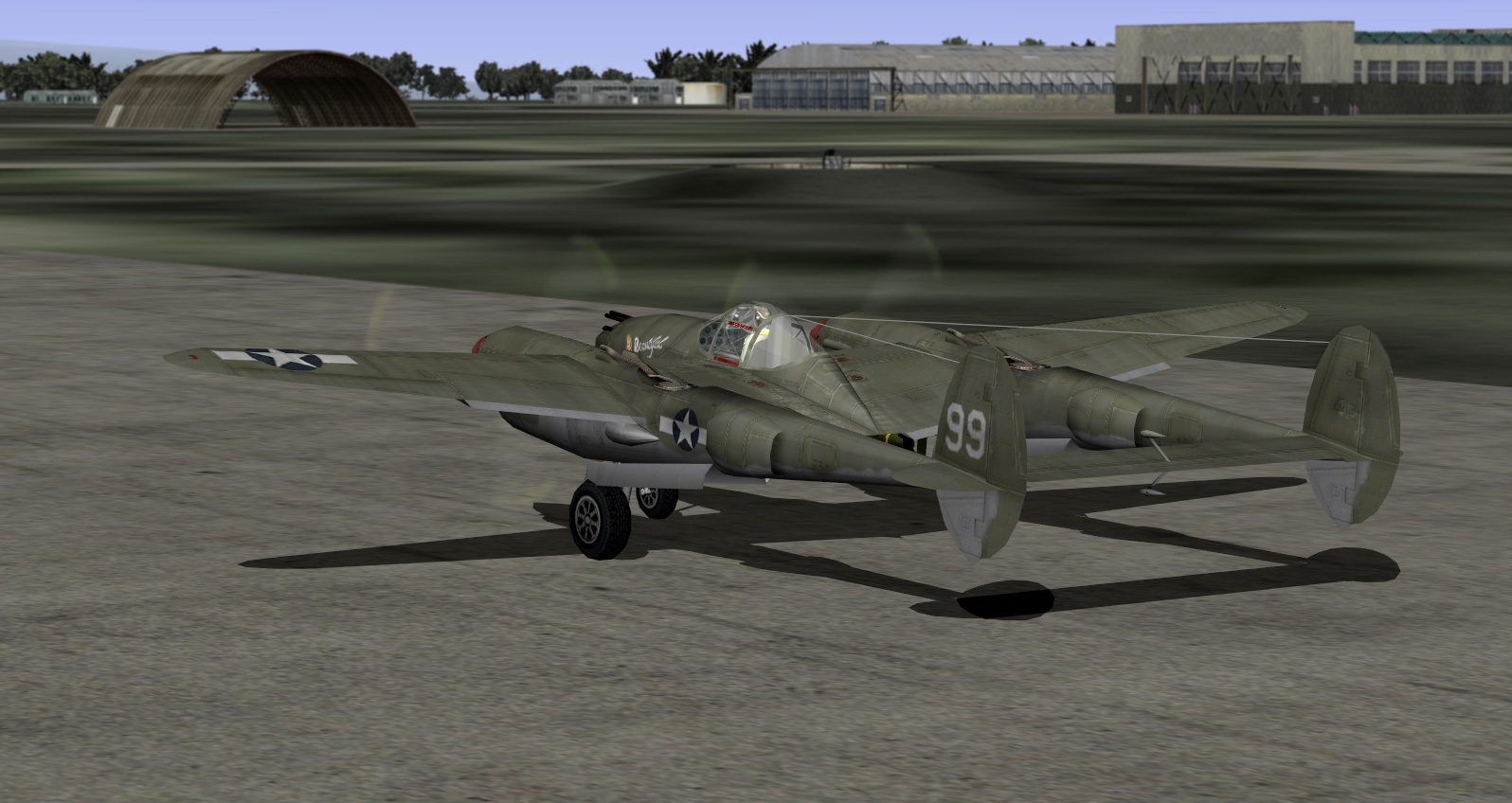
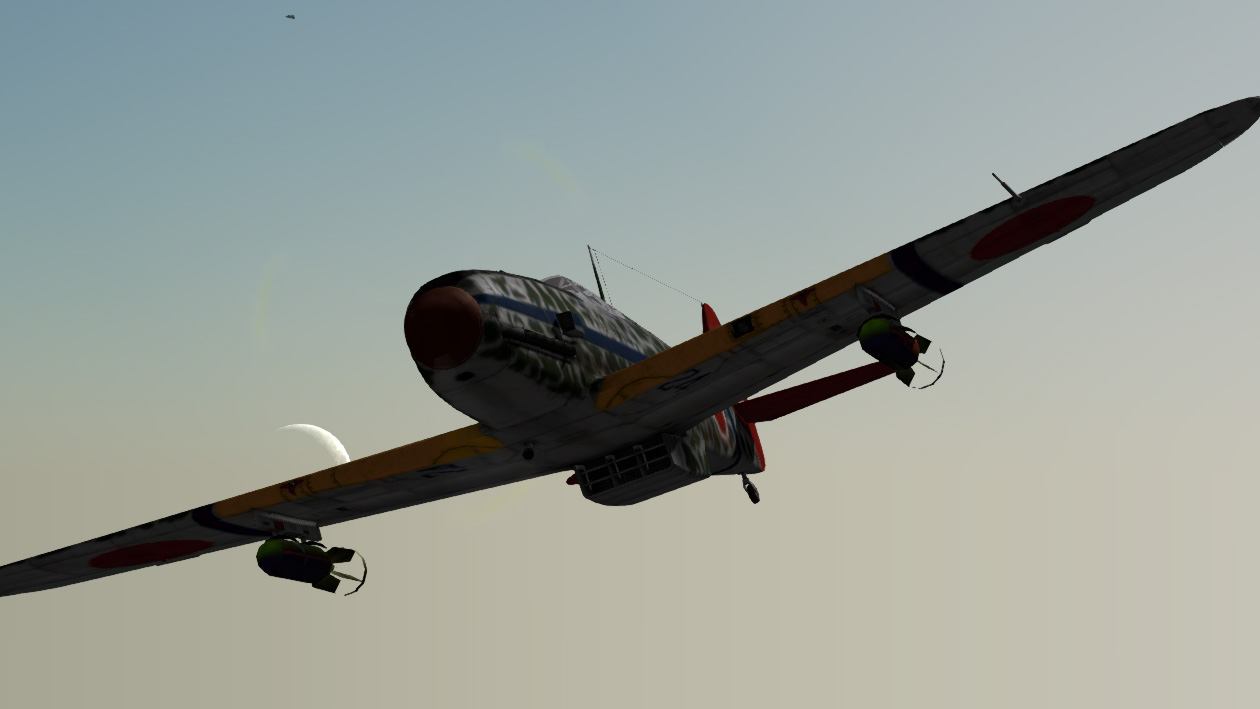
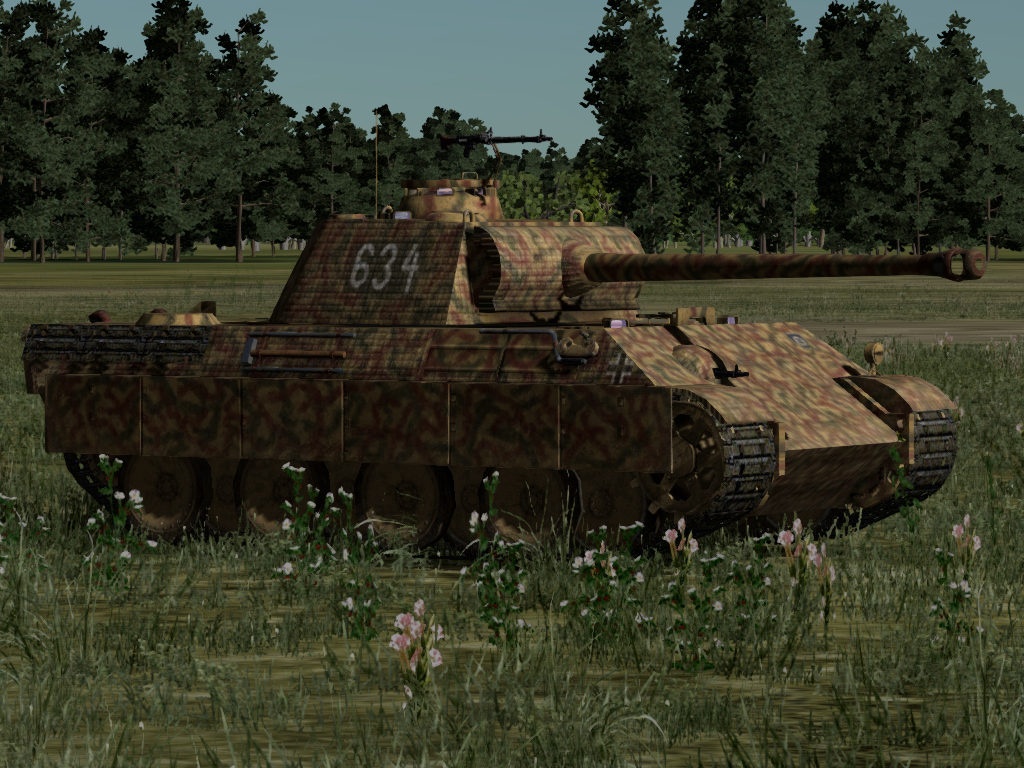
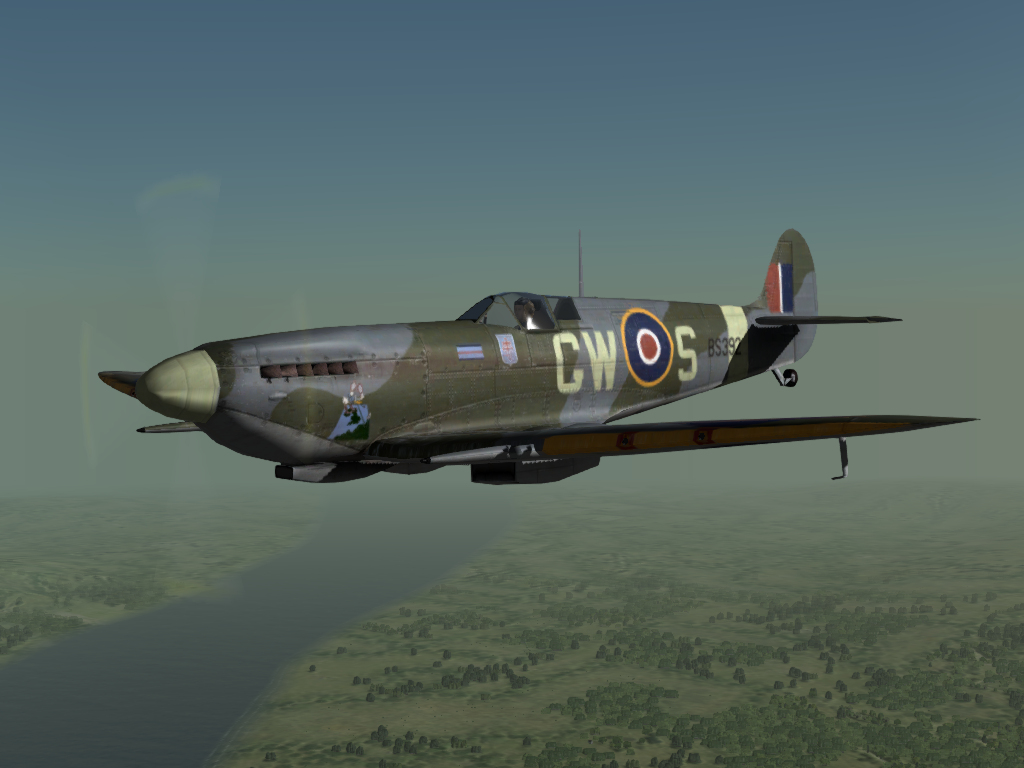
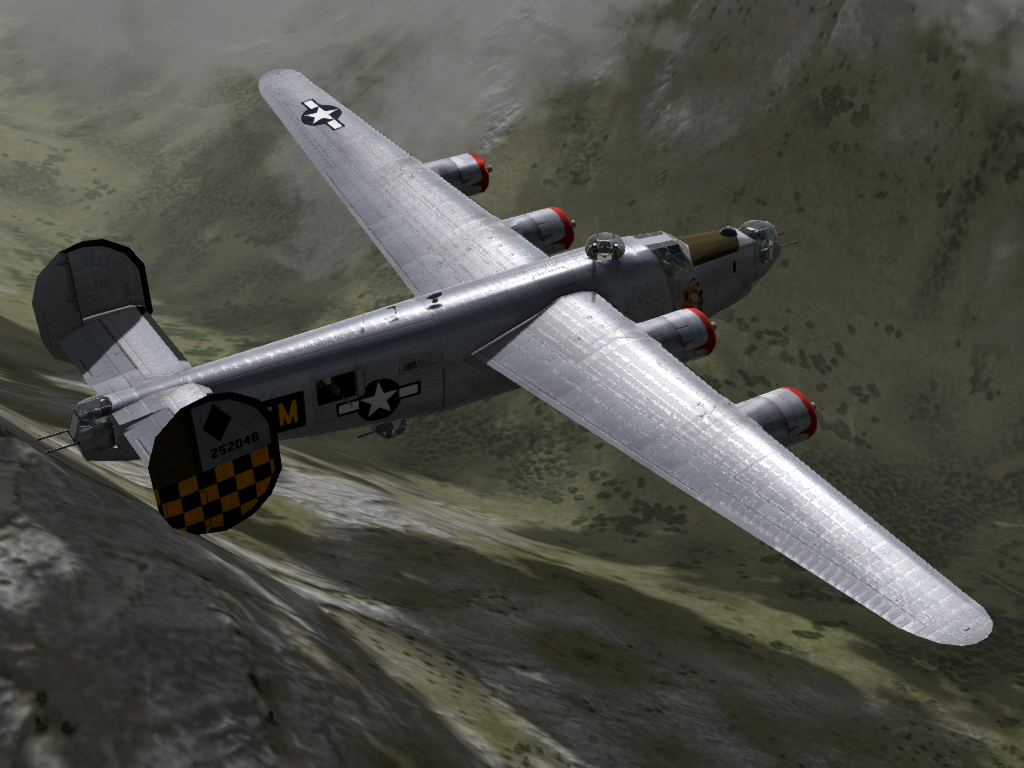
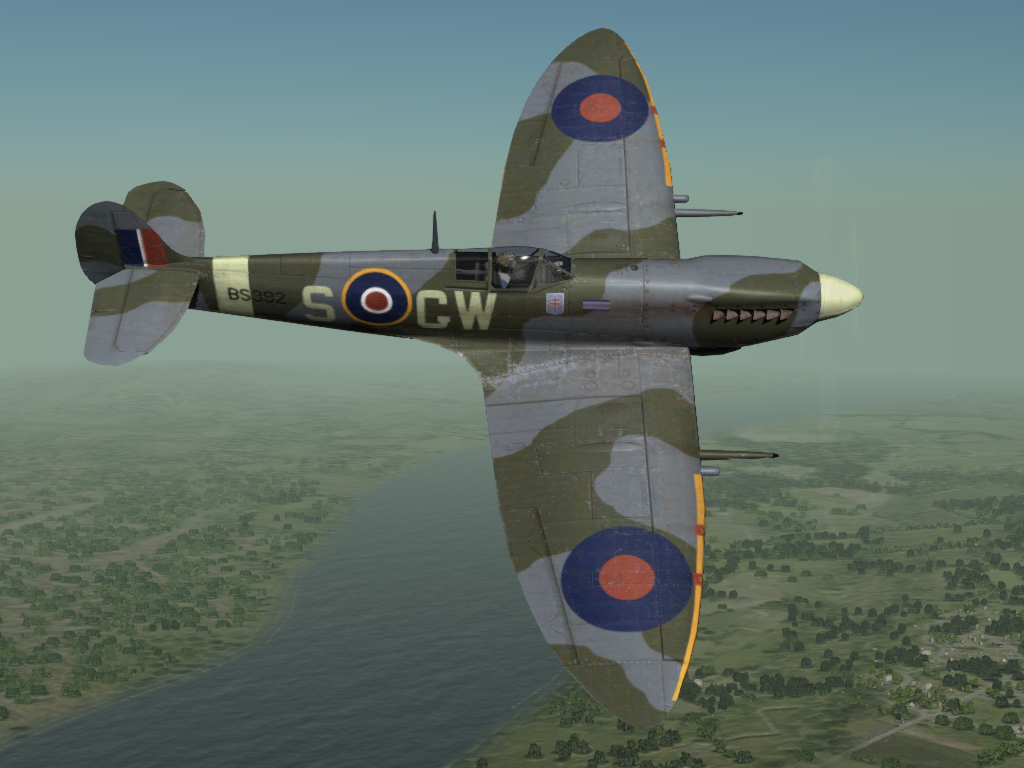
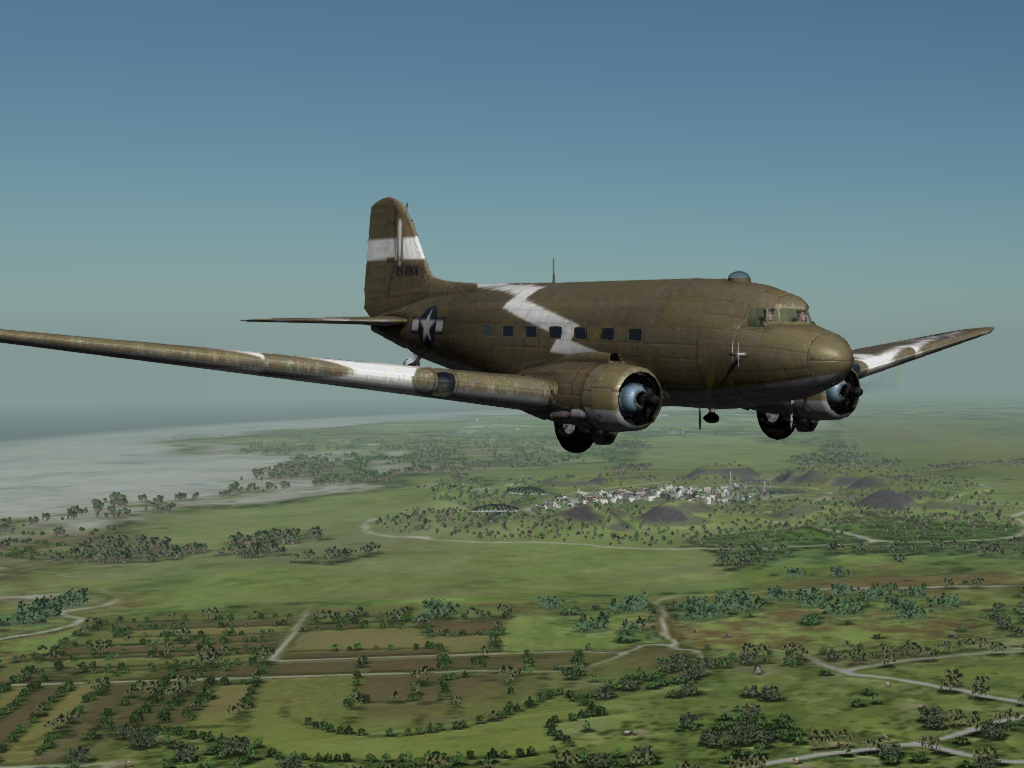
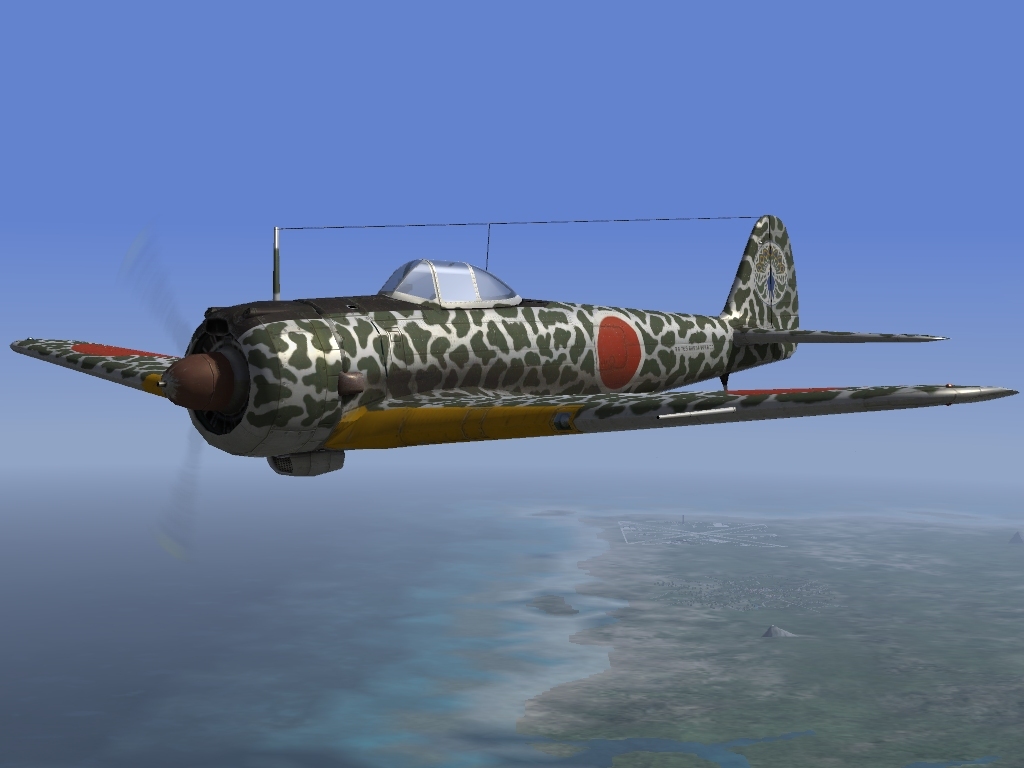
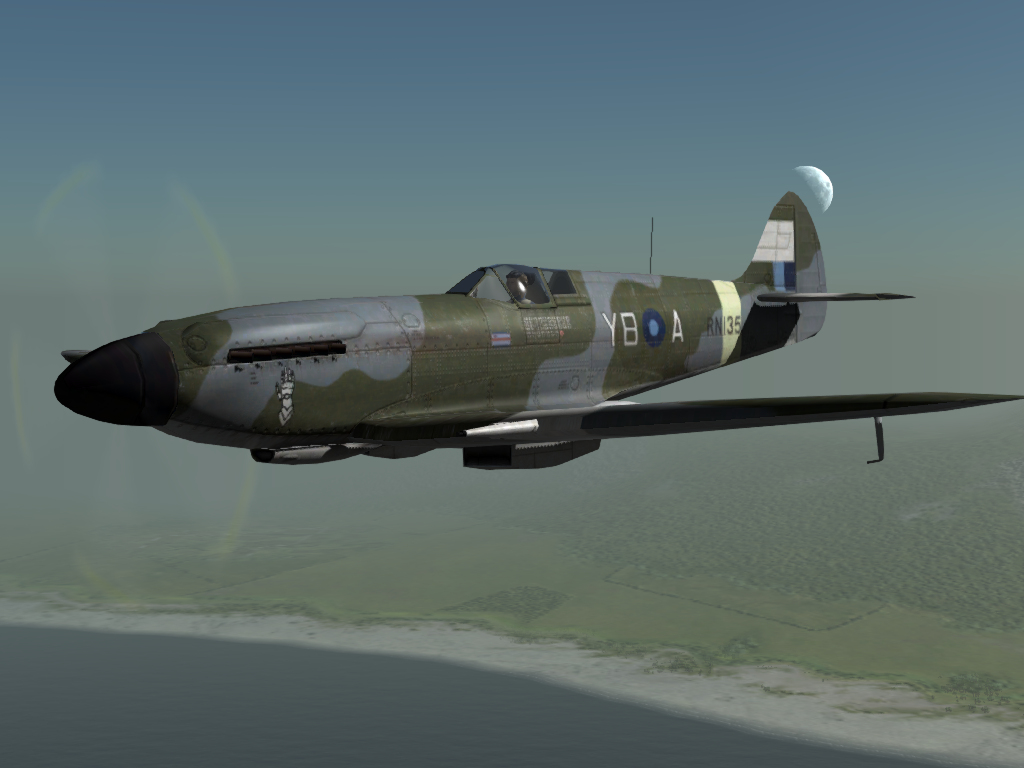
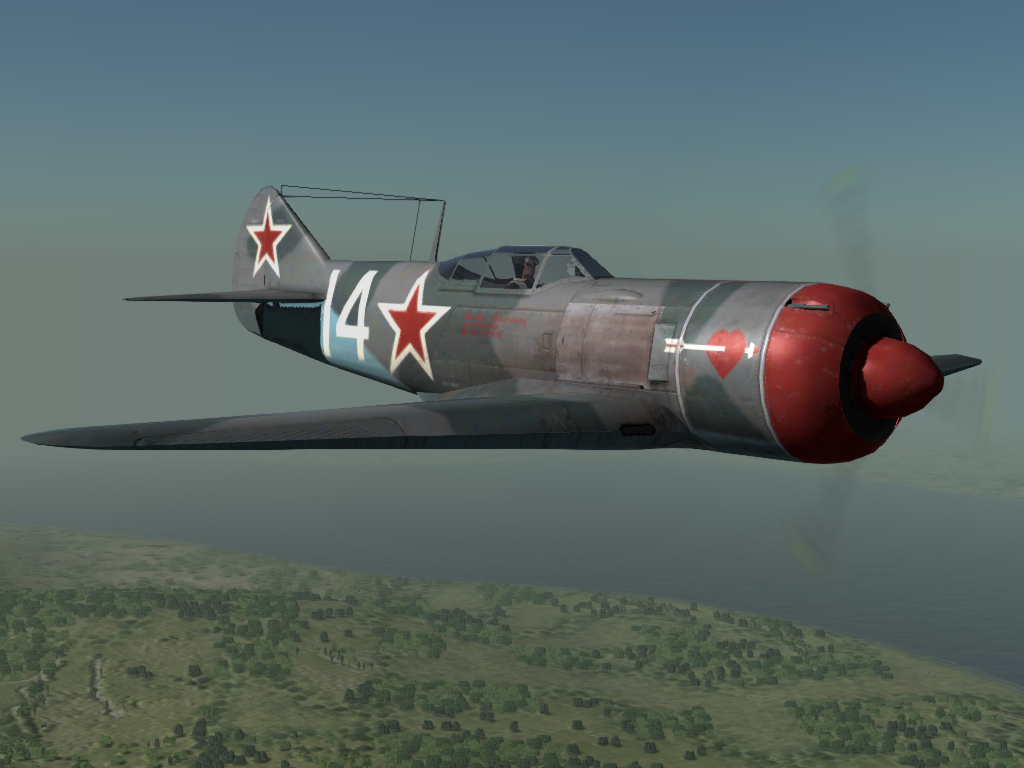
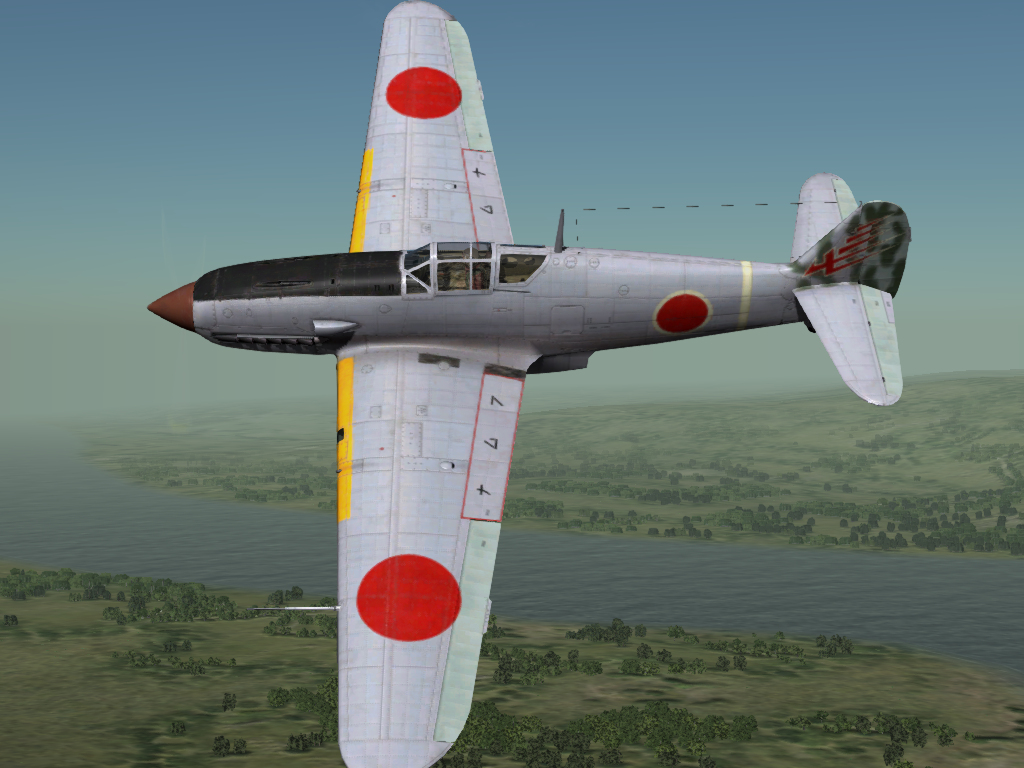
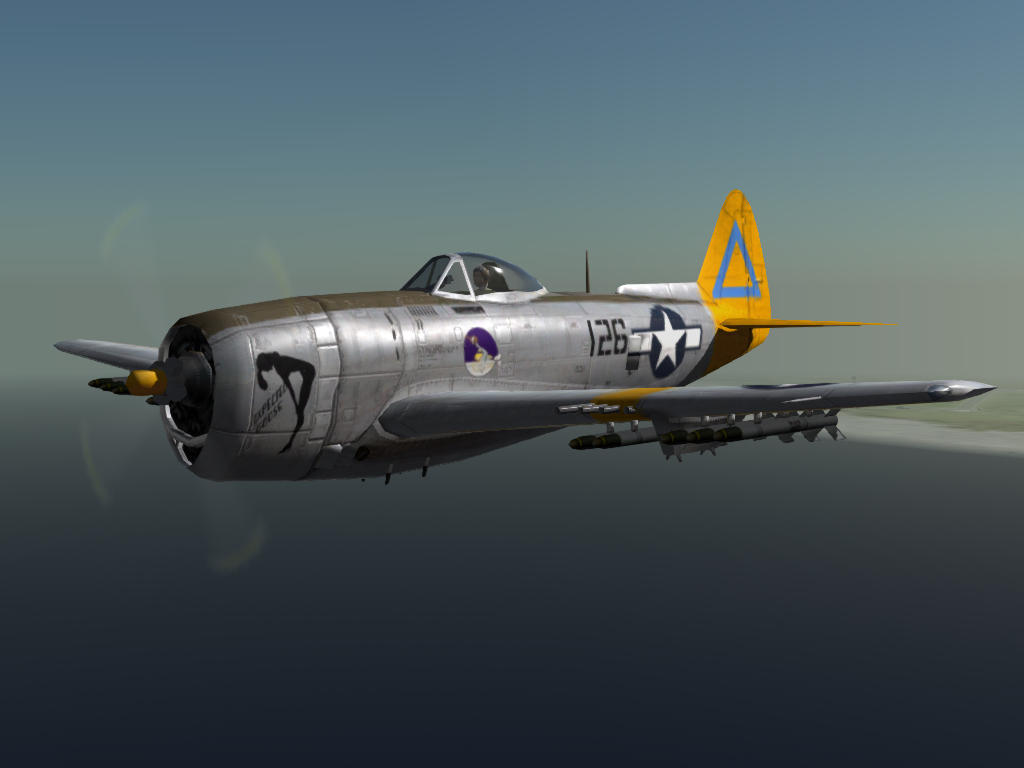
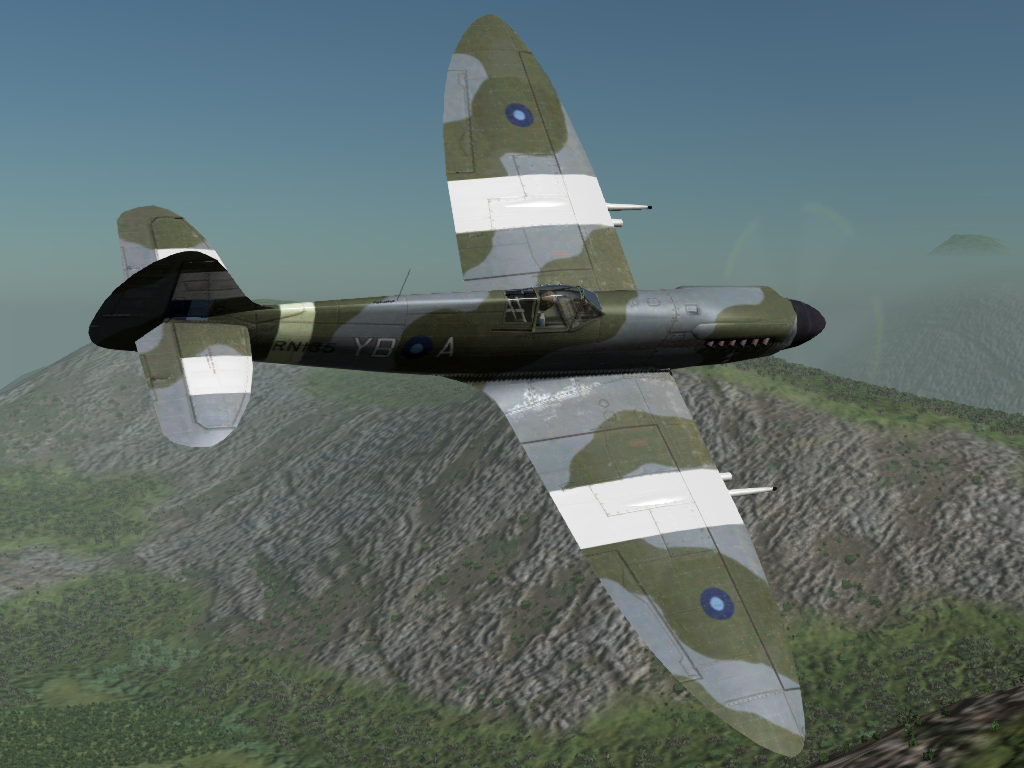
High fidelity flight simulation is the heart of Aces High but it doesn't end there. A war rages on the ground and at sea. Engage enemy armor in tank combat. Protect your fleet as a gunner or make a torpedo run in a PT boat. Lead an assault in an amphibious vehicle. With over 100 warbirds, vehicles, and boats available, you have access to a vast virtual arsenal.
Take part in special events such as historical scenarios where famous battles are recreated and reimagined or try your hand at air racing at tree top level against skilled competitors.
In the air, on land, and at sea, the battle rages 24 hours a day with participants from around the world. Take our free two week trial and find out why Aces High is the online game for you.